
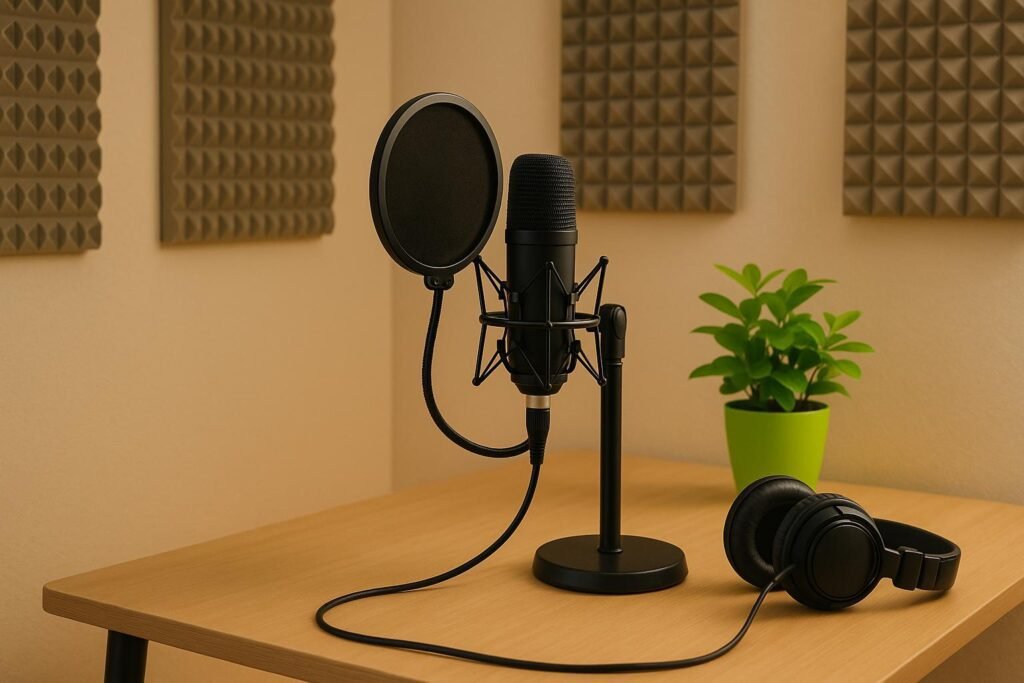
Want professional podcast audio at home? Here’s the key: focus on the right gear, create a proper recording space, and master basic techniques. Poor audio can ruin even great content, but with a few simple steps, you can sound polished and professional.
- Quick Takeaways:
- Tools for Editing:
- DIY Home Podcast Studio Setup In 2025 | No More Excuses
- Equipment You Need for Professional Podcast Recording
- Accessories for a Complete Setup
- Setting Up Your Home Recording Space
- Soundproofing and Acoustic Treatment
- Picking the Right Room for Recording
- Microphone Placement and Cable Management
- sbb-itb-0e595bb
- Recording Techniques for Clear Audio
- Microphone Technique and Gain Staging
- Headphone Monitoring for Real-Time Feedback
- Using Digital Audio Workstations (DAWs)
- Fixing Common Audio Problems
- Finding and Reducing Background Noise
- Solving Audio Issues
- Managing Your Recording Environment and Equipment
- Conclusion: Improving Your Podcast Audio at Home
- FAQs
- What mistakes should I avoid when creating a home podcast recording setup?
- What are the best ways to minimize background noise when recording a podcast at home?
- Why should I use a boom arm and pop filter for my podcast setup?
- Related Blog Posts
Quick Takeaways:
- Gear to Get Started: Use a quality microphone, pop filter, boom arm, and closed-back headphones.
- Optimize Your Space: Record in a small, quiet room with soft surfaces (like a closet with clothes) to reduce echoes and noise.
- Techniques That Matter: Keep the mic 4–6 inches from your mouth, monitor audio with headphones, and set gain levels between -12 dB and -6 dB.
Tools for Editing:
- Free beginners’ option: Audacity.
- Advanced tools: Adobe Audition ($22.99/month) or Logic Pro ($199.99 one-time).
By focusing on these essentials, you’ll create clear, professional audio that keeps your listeners engaged.
DIY Home Podcast Studio Setup In 2025 | No More Excuses
Equipment You Need for Professional Podcast Recording
Having the right gear is crucial to capturing high-quality audio for your podcast. Even a basic setup can benefit significantly from a few key accessories designed to improve clarity and overall performance.
Accessories for a Complete Setup
Here are some must-have accessories to elevate your podcast recording:
- Pop Filters: These help reduce harsh plosive sounds caused by strong consonants, making your audio sound smoother and more professional[3].
- Boom Arms: Boom arms keep your microphone stable and in the perfect position by isolating it from desk vibrations. This prevents unwanted noise from movements or bumps, ensuring consistent sound quality[1][2].
- Headphones: A good pair of headphones is essential for monitoring your recording in real time. Wired, closed-back headphones are ideal as they block out external noise, prevent mic-bleed, and allow you to catch issues like background hum or static as they happen[1][3].
- Windscreens: Windscreens act as a shield for your microphone, reducing noise caused by air movement – whether it’s from a fan, breeze, or even your breath. They help prevent distorted or rumbling audio for a cleaner recording[3].
Setting Up Your Home Recording Space
The space where you record has a bigger impact on audio quality than you might think. In fact, research highlights that "90% of the time, when a podcast doesn’t sound great, it is mostly about the space it was recorded in" [6]. The good news? You don’t need to spend a fortune on renovations to create a professional-sounding setup at home.
Soundproofing and Acoustic Treatment
To improve sound quality, start by adding soft materials like thick curtains, heavy drapes, or area rugs. These help absorb sound and reduce unwanted reflections. For a more polished setup, consider placing acoustic foam panels around your microphone. Even simple furniture arrangements – like bookshelves, upholstered chairs, or fabric sofas – can break up sound waves and reduce echoes.
Once you’ve added these elements, pick a room that naturally supports your efforts.
Picking the Right Room for Recording
The nature of your home podcast studio will have the biggest impact on the sound quality of your audio.
[4] Smaller, enclosed spaces – such as walk-in closets lined with clothes – are ideal for recording. NPR‘s Ira Glass famously recorded an episode from a closet to achieve clean, clear audio.
On the flip side, avoid rooms with hard, reflective surfaces like kitchens, bathrooms, or spaces with large windows and bare walls. These areas tend to amplify echoes and reverberations. Instead, opt for rooms with carpeting, fabric furniture, and plenty of soft surfaces. A quick clap test can help you assess a room’s acoustics – if you hear a distinct echo, it might not be the best choice.
Your microphone is a tool that will pick up whatever sound is in your environment. Having a quiet environment will give you a big advantage when it comes to the sound quality of your podcast, regardless of your microphone.
[5] Be mindful of potential noise sources like air conditioning, computer fans, street traffic, or household appliances. Address these issues ahead of time to ensure a quieter recording environment.
Microphone Placement and Cable Management
Once your space is ready, focus on proper microphone placement and keeping cables organized to achieve the best results. Position your microphone 4–6 inches from your mouth and angle it slightly to the side to minimize breathing noise. A boom arm can help maintain consistent placement, and keeping the microphone at or just below mouth level ensures steady sound quality.
Don’t overlook cable management – it’s crucial for maintaining a clean, functional setup. Keep cables routed away from high-traffic areas to avoid accidental disruptions, and secure loose wires with ties or clips. This not only prevents disconnections but also reduces incidental noise, so you can concentrate on delivering top-notch content.
sbb-itb-0e595bb
Recording Techniques for Clear Audio
With your recording space ready to go, it’s time to focus on the techniques that will elevate your audio to a professional standard. How you handle your equipment and monitor your recordings can make all the difference between sounding amateur and delivering broadcast-quality content.
Microphone Technique and Gain Staging
Consistent microphone technique is essential for clear, distortion-free audio. Stick to the earlier placement tips – position yourself slightly off-axis to reduce plosive sounds, and avoid leaning in or pulling back while speaking. Keep your distance steady to maintain a balanced tone.
Gain staging is another critical element. It’s all about managing audio levels throughout your recording chain to ensure clean sound. The goal? Keep your signal high enough to avoid background noise but low enough to prevent distortion. Start with a low gain setting and gradually increase it until your voice peaks between -12 dB and -6 dB. This range provides enough headroom to prevent clipping, which occurs when levels exceed 0 dBFS in digital audio, resulting in harsh distortion [7][8][9].
Keep an eye on your level meters. Aim for consistent activity in the green zone, with occasional peaks in the yellow. Avoid the red zone entirely, as it indicates clipping. Finally, make sure your monitoring setup is dialed in so you can catch and resolve issues in real time.
Headphone Monitoring for Real-Time Feedback
Using closed-back headphones during recording is a must. They block external sound leakage, helping you monitor your audio without feedback issues. By wearing headphones, you’ll hear exactly what the microphone captures – not just what you think it sounds like.
This real-time feedback lets you catch problems immediately, whether it’s a loose cable, unexpected background noise, or inconsistent voice levels. If your voice gets too quiet or too loud, adjust your position relative to the microphone instead of tweaking the gain mid-recording. Also, listen for subtle distractions like mouth sounds, paper rustling, or chair squeaks – things you might overlook without headphones.
Skipping headphone monitoring is a common rookie mistake. Many podcasters only discover these issues during editing, when it’s too late to fix them.
Using Digital Audio Workstations (DAWs)
A Digital Audio Workstation (DAW) is your main tool for recording and editing. It’s where you capture audio, refine it, and create a polished final product.
For beginners, Audacity is a fantastic free option. It’s simple to use, cross-platform, and offers basic editing tools, making it a great starting point. Plus, there’s no shortage of online tutorials to help you get started.
If you’re ready for professional-grade tools, Adobe Audition is a top choice. At $22.99 per month, it offers advanced features like spectral editing and noise reduction, which can save you hours during post-production.
For Mac users who want a one-time purchase, Logic Pro is a powerhouse. Priced at $199.99, it combines high-quality effects, virtual instruments, and professional mixing tools, making it ideal for podcasters who also dabble in music production.
| DAW | Price | Best For | Key Features |
|---|---|---|---|
| Audacity | Free | Beginners, basic editing | Simple interface, cross-platform, noise reduction |
| Adobe Audition | $22.99/month | Professional editing, audio repair | Spectral editing, advanced noise reduction, multitrack |
| Logic Pro | $199.99 (one-time) | Mac users, music integration | Professional effects, virtual instruments, advanced mixing |
For optimal quality, set your recording format to 48 kHz, 24-bit. This ensures plenty of headroom for editing and guarantees your audio will sound great on any device. Save time by creating a project template with these settings so you don’t have to reconfigure them every time you record.
Lastly, record your audio “dry” – without effects or processing. This gives you full flexibility during editing. You can always add enhancements later, but you can’t undo baked-in effects from the original recording.
Fixing Common Audio Problems
After setting up your equipment and fine-tuning your recording techniques, the next step is tackling those pesky audio problems that can pop up unexpectedly. Even with the best gear, issues can arise – but the good news is they’re often fixable with a bit of know-how.
Finding and Reducing Background Noise
Background noise can ruin even the most polished podcast. Here’s how to deal with common culprits:
- HVAC systems: That constant hum from air conditioning or heating can creep into your audio. Turn off your HVAC system about 15 minutes before recording to eliminate this noise.
- Computer fans: Move your computer farther from the microphone or switch to a laptop in power-saving mode to reduce fan activity. Unplug external hard drives, printers, and other electronics that aren’t essential during recording.
- Street noise: If you live near a busy road, plan to record during quieter times, such as mid-morning on weekdays or early weekend mornings. Check local traffic patterns to find the best window.
- Refrigerators and appliances: Unplug your fridge about 30 minutes before recording, and avoid running noisy appliances like dishwashers or washing machines. Even small sounds, like a ticking clock, can be picked up by sensitive mics – silence or remove anything that might create repetitive noise.
- Room tone: Before recording, capture 30–60 seconds of "silence" in your space. This ambient sound can be used later during editing to smooth out transitions and fill gaps.
Once you’ve minimized background noise, it’s time to address other common audio challenges.
Solving Audio Issues
Here’s how to fix some of the most frequent audio problems:
- Audio hum: This often comes from electrical interference or ground loops. Start by checking all cable connections – loose XLR or USB cables are common culprits. If the hum persists, plug all your equipment into the same power strip to eliminate ground loop issues. Using shielded XLR cables can also help.
- Distortion: If your audio sounds distorted, your input levels might be too high. Lower the gain so peaks fall between -12 dB and -6 dB. If distortion continues even at low gain, make sure phantom power is enabled for condenser microphones.
- Echo and reverb: Hard surfaces like walls and windows reflect sound back to your mic, creating unwanted echo. Add soft furnishings like pillows, blankets, or acoustic panels to absorb these reflections. Surprisingly, recording in a closet full of clothes often produces cleaner audio than an empty, untreated room.
- Plosives: These harsh "p" and "b" sounds can be reduced by speaking slightly off-axis and using a pop filter.
- Noise reduction plugins: If background noise persists, try using plugins in your digital audio workstation (DAW). For example, Adobe Audition offers a spectral frequency display to pinpoint and remove specific noises, while Audacity has a noise reduction tool that works well for steady hums. Use these tools sparingly – they’re best as a last resort.
Managing Your Recording Environment and Equipment
Maintaining your recording space and equipment is just as important as addressing noise and distortion. Here’s how to keep things running smoothly:
- Temperature and humidity control: Keep your recording space between 68°F and 72°F, with humidity levels around 30–50%. This ensures both your comfort and optimal equipment performance.
- Equipment maintenance: Regular upkeep can prevent many issues. Clean XLR connectors monthly with contact cleaner to avoid crackling sounds. Dust your audio interface’s vents to prevent overheating, and store microphones in protective cases when not in use.
- Cable management: Organize your cables to avoid interference. Keep power and audio cables at least 6 inches apart, and replace any damaged cables immediately.
- Power conditioning: As your setup grows, invest in a surge protector with EMI/RFI filtering to reduce electrical noise. This is especially useful if you’re in an older building with less reliable wiring.
- Regular testing: Before recording a full session, do a quick 2-minute test to catch any unusual sounds. It’s much easier to fix a loose connection or other issues upfront than to discover them during editing.
Conclusion: Improving Your Podcast Audio at Home
Creating high-quality podcast audio at home is absolutely within reach if you focus on three key areas: using the right equipment, refining your recording space, and honing your recording techniques. These steps can take your sound from basic to polished and professional.
Let’s start with equipment. Your microphone makes all the difference. Whether you go for a dynamic mic like the Shure SM7B to minimize background noise or a condenser mic for capturing finer details, pairing it with a solid audio interface and practicing good mic technique is essential for clear, crisp audio.
Next, think about your recording space. A cozy, controlled area – like a closet with plenty of soft furnishings – can do wonders for minimizing unwanted echoes and background noise. Pay attention to details like reducing sound reflections, avoiding HVAC noise during recording, and keeping your gear in good shape with regular cleaning and proper cable management.
Finally, mastering the basics of recording is a game-changer. Get the gain levels right, stick to consistent mic placement, and troubleshoot common issues like loose connections or electrical interference. These small adjustments can make a big difference in your final output.
If you’re looking for extra guidance, Sounds Debatable offers one-on-one consulting with experienced professionals. They provide 30-minute sessions for $149 and 1-hour sessions for $195, helping you refine your process and achieve top-tier results.
Your podcast content deserves audio that stands out. By focusing on these fundamentals – equipment, space, and technique – you’ll be well on your way to producing episodes that sound as professional as they are engaging. Keep practicing, and watch your audio quality soar!
FAQs
What mistakes should I avoid when creating a home podcast recording setup?
To produce high-quality audio at home, steer clear of these frequent pitfalls:
- Using rooms with bad acoustics: Hard surfaces like bare walls or floors can cause echoes and muddle your sound. Choose a smaller, carpeted space or add sound-dampening materials such as foam panels or heavy curtains to improve clarity.
- Relying on basic equipment: Built-in computer microphones often deliver subpar results. Upgrade to an external microphone, good-quality headphones, and an audio interface to elevate your recordings.
- Incorrect microphone positioning: Proper mic placement is key – keep it about 6–12 inches from your mouth and adjust the settings to match your recording environment.
Fixing these common mistakes can make a big difference in your audio quality, ensuring a better listening experience for your audience.
What are the best ways to minimize background noise when recording a podcast at home?
To reduce background noise while recording at home, start by selecting a quiet room that’s away from distractions like traffic, household chatter, or humming appliances. Close all windows and doors to keep outside noise at bay, and switch off any devices that might produce a low hum or buzz.
Soft furnishings are your friends when it comes to sound absorption. Rugs, curtains, and even well-stocked bookshelves can help cut down on echo. If you’re looking for a quick and budget-friendly fix, try hanging blankets, duvets, or towels around your recording space. This simple trick can significantly dampen noise and improve your audio quality.
Even small tweaks to your setup can go a long way in creating clean, professional-sounding recordings!
Why should I use a boom arm and pop filter for my podcast setup?
A boom arm is a handy tool that lets you position your microphone just where you need it. This not only helps you keep a steady, consistent sound quality but also keeps your desk neat and free of clutter. Plus, it minimizes unwanted vibrations by keeping the mic isolated from any desk movements.
Adding a pop filter can make a big difference in your audio quality. It cuts down on those sharp, harsh sounds that come from plosive consonants like "P" and "B." With this small upgrade, your recordings will sound smoother and more polished, making it easier for your audience to stay focused on what you’re saying.